This is the Trace Id: 7fa9496f61a9f312dec6da4fab1d3557
Skip to main content Shop PCs Compare Help and support For business Microsoft 365 Azure Copilot Windows Surface XBOX Deals Small Business Support Windows Apps Outlook OneDrive Microsoft Teams OneNote Microsoft Edge Moving from Skype to Teams Computers Shop XBOX Accessories VR & mixed reality Certified Refurbished Trade-in for cash XBOX Game Pass Ultimate PC Game Pass XBOX games PC games Microsoft AI Microsoft Security Dynamics 365 Microsoft 365 for business Microsoft Power Platform Windows 365 Small Business Digital Sovereignty Azure Microsoft Developer Microsoft Learn Support for AI marketplace apps Microsoft Tech Community Microsoft Marketplace Software companies Visual Studio Microsoft Rewards Free downloads & security Education Gift cards Licensing Unlocked stories View Sitemap
A screen showing creativity and productivity tools on Windows 11

September 18, 2025

5 tips to supercharge creativity

Deadlines, edits, rewrites, “Can you just tweak this?”—sound familiar? Copilot+ PCs bring calm to your creative storm with built-in tools that think (and create) fast.

From video editing tools in Clipchamp to AI art magic, here are five fun tips to help you create more and stress way less.

1. Start with inspiration, watch it appear

Got an idea but not sure where to start? Cocreator in Paint helps you turn a quick text prompt—and a few brushstrokes—into a visual concept.1 Just describe what you want to create—like “a treehouse in the clouds”—and Cocreator makes it happen.

2. Remix your style, your way

Your art doesn’t have to stay in one lane. Cocreator helps you explore different looks with preset styles like watercolor, pixel art, and sketch.1 Just one click gives your work a fresh spin.

If you want more flexibility, use the creativity slider to control how far the style transforms your piece—dial it down to stay close to your original, or up for something totally unexpected.1
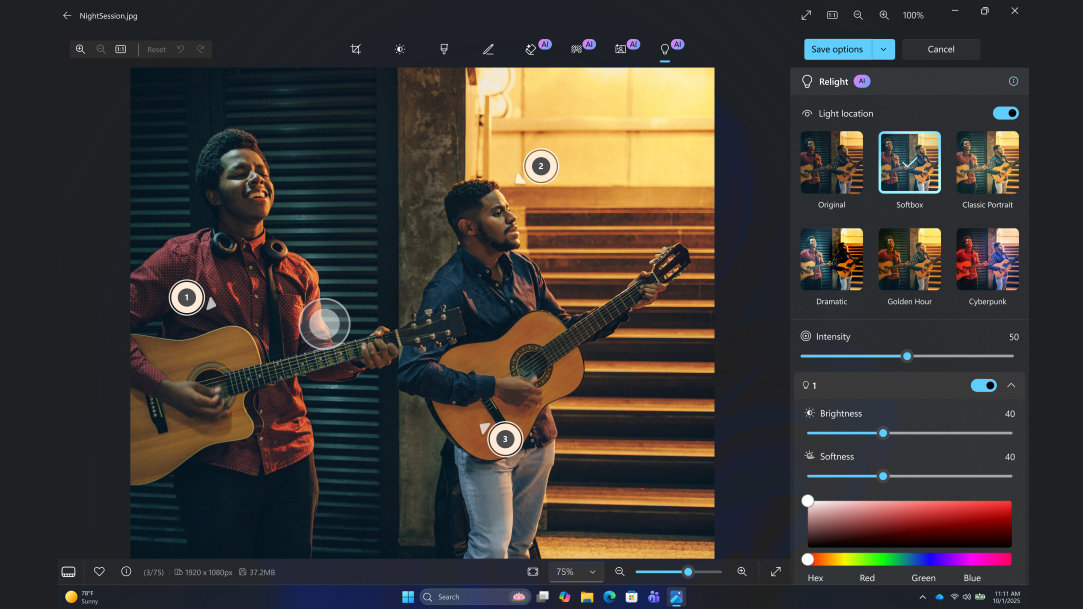
The relighting tool in action, showing how to create a Softbox feel to lighting an image

3. Snap now, relight later

Captured the right moment—but in the wrong lighting? Relight uses AI to fix it after the fact, adjusting shadows and highlights to bring your photo back to life.2

No filters, no reshoots—just natural-looking light, the way it should have been.

4. Go from idea to upload with smart video templates

Clipchamp—Microsoft’s video editing tool—helps you turn ideas into polished videos without starting from scratch. With ready-made templates3,4 for everything from daily vlogs to vacation slideshows, you can move from rough cut to ready-to-share in minutes. Just choose a layout, drag in your clips, customize the text, and export.

It’s a faster, simpler way to keep your creativity flowing.

5. Cut faster with AI video editing tools

Great ideas shouldn’t get lost in the edit. Clipchamp’s AI-powered tools help you turn raw footage into a tight, clean first cut—fast.

Why it’s your secret weapon:

  • Auto compose: Automatically arranges your clips into a clean, story-ready sequence—so you’re not starting from a blank timeline.
  • Highlights3: AI analyzes your transcript and pulls the best moments into a cohesive, share-worthy video.
  • Retake and filler word removal3: Snips out stumbles, “uhhs,” and unfinished sentences in a click, so your edits sound smooth and confident.
  • Noise suppression: Cleans up background noise like fans or street sounds, making your audio crisp and clear—no fancy mic required.

Final creativity tip? Get yourself a Copilot+ PC

Tools like Cocreator, Clipchamp AI features, and Relight are built into Copilot+ PCs—and they’re designed to help you move from idea to execution at lightning speed.

Whether you’re working on a pitch, a portrait, or a personal project, Copilot+ PCs help you stay in your flow, not in your head.

DISCLAIMER: Features and functionality subject to change. Articles are written specifically for the United States market; features, functionality, and availability may vary by region.
  • [1] Optimized for English text prompts and requires a Microsoft account and internet connection to access cloud services that help ensure the responsible use of AI. See aka.ms/copilotpluspcs
  • [2] Relight in Photos is exclusive to Copilot+ PCs and currently supports only images.
  • [3] Microsoft Clipchamp subscription sold separately (premium filters & effects, premium stock content, brand kit, advanced AI features - highlights, retake and filler word removal, premium output (4k).
  • [4] Available in English only.

Mentioned in this article

Windows 11 bloom

Benefits of Windows 11

Windows 11 bloom

Shop Windows 11 PCs

Windows 11 bloom

Help me choose a Windows 11 PC

You may also like

Laptop with Windows 11 bloom and startup screen next to words that say Start fresh without starting over with a blue background

Windows 10 end of support

Learn how to make the transition from Windows 10 to 11 and find out what’s in store for Windows 11.
Laptop with Windows 11 bloom and startup screen next to words that say Make your move easier with a blue background

How to get started with Windows Backup

Learn how to back up your folders to your OneDrive account and keep your files protected and recoverable.
Overhead view of a person with a laptop box and gift-wrapping material, while also using a laptop

Get started with Copilot+ PCs

Unlock AI-powered productivity with Copilot+ PCs. Personalize your PC for smarter, faster performance.
English (United States)
Your Privacy Choices Opt-Out Icon Your Privacy Choices
Consumer Health Privacy Sitemap Contact Microsoft Privacy Manage cookies Terms of use Trademarks Safety & eco Recycling About our ads