We’ve all been there, you search for an email or calendar invite in Outlook only to find that it isn’t there anymore. Until now deleted items were moved into the Deleted Items folder, then they would disappear after being in that folder for 30 days. With this update, the length of time items remain in the Deleted Items folder is extended to indefinitely or according to the duration set by your administrator. So that email or calendar invite you were looking for is still there if you search for it later—even if you accidentally deleted it.
If you are an Office 365 administrator, this means we’ll be updating the Default MRM Policy for everyone using Exchange Online over the next month. As an administrator, you also have control over this behavior. If you want to keep the 30-day policy or set a custom retention period, that can be done as well and you don’t even need to wait for the change. Also, if you have already created a custom MRM policy, (as long as it has a name other than “Default MRM Policy”), you don’t need to do anything and the change will not impact you.
Create a custom retention policy
You can either edit the name of the Default MRM Policy or create a new policy to opt out of this change. To change the policy name in Office 365 navigate to Office 365 Admin > Exchange admin center > compliance management > retention policies. Next, select Default MRM Policy, click the edit icon and then change the name of the policy.
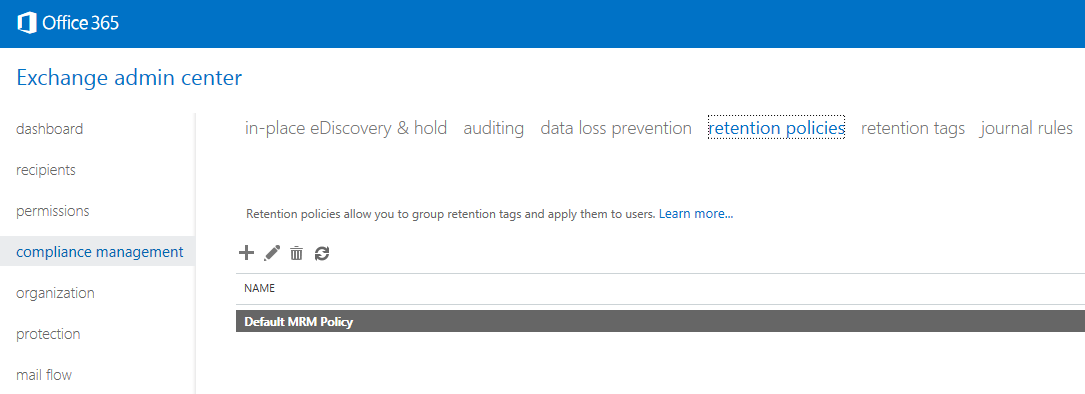
Exchange admin center for compliance management and retention policies.
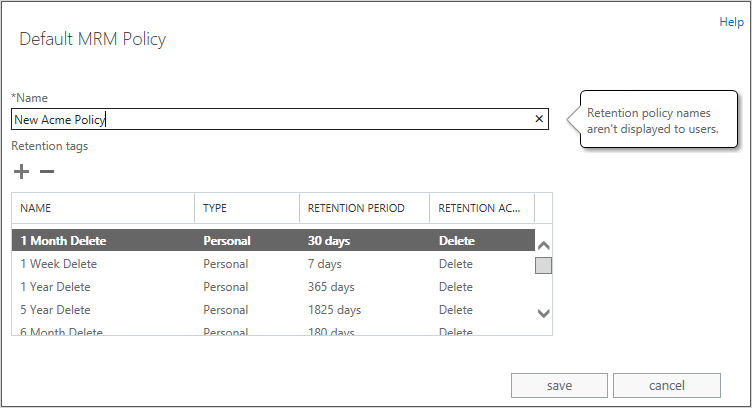
Editing experience for retention policies.
Now your policy will not be overwritten and will maintain the settings you’ve specified.
Frequently asked questions
Q. Will this be only for new users or will this policy change for all my users who are already in Office 365?
A. This change will affect all existing and new users in your Office 365 tenant who have been assigned the Default MRM Policy.
Q. What if I customized the Default MRM Policy with other settings and properties, but did not rename it?
A. Modifying the properties in the Default MRM Policy alone will not exclude it from being overwritten by this change. If you have customized your Default MRM Policy and kept the original name, the change will still apply.
Q. Does this policy apply to the Recoverable Items folder?
A. No the change does not apply to the Recoverable Items folder. It is only for the visible Deleted Items folder.
Q. If I already have a custom retention policy, will it also be changed to this new default?
A. No, custom policies that you have created will not be modified. For example, if the admin has added extra tags, modified the retention period, modified retention enabled of an existing tag etc. the new behavior will not be enforced.
Q. Does this change affect “Move to Archive” actions on the Deleted Items folder?
A. No, this change will not affect any explicit tags set by the users on items in the Deleted Items folder.
Q. If there is a “Move to Archive” action on the Deleted Items folder will that be affected?
A. No, the change will not affect any “Move to Archive” actions on the Deleted Items folder.
Q. Will this change apply both to the primary and personal archive mailbox Deleted Items folders?
A. Yes, the change will apply for the Deleted Items folder in both the primary and archive mailbox.
Q. Will this change affect a Litigation Hold or In-Place Hold?
A. No, this will not an affect Ligation Hold or In-Place Hold.