If you receive an error message like:
Maximum number of items that can be serialized or deserialized in an object graph is ‘65535’.
And the Article:
https://technet.microsoft.com/en-us/library/gg862502.aspx
Is not fixing the issue for you. Please use the following steps:
PART 1
https://technet.microsoft.com/en-us/library/gg862502.aspx
Ax32serv.exe.config need to be updated in your system to match the below as from the article above.
1) Update the ServiceBehavior MetadataServiceBehavior to increase the maxItemsInObjectGraph, by adding the dataContractSerializer object.
<behavior name=”MetadataServiceBehavior”>
<dataContractSerializer maxItemsInObjectGraph=”524288″ />
<serviceMetadata httpGetEnabled=”true” httpGetUrl=”http://DAX2012.contoso.com:8101
/DynamicsAx/Services/MetadataService” />
<serviceDebug includeExceptionDetailInFaults=”False” />
<serviceThrottling maxConcurrentCalls=”200″ maxConcurrentSessions=”200″
maxConcurrentInstances=”200″ /<useRequestHeadersForMetadataAddress>
<defaultPorts>
<add scheme=”net.tcp” port=”8201″ />
</defaultPorts>
</useRequestHeadersForMetadataAddress>
</behavior>
2) Create an Endpoint Behavior that also increases the maxItemInObjectGraph
<endpointBehaviors>
<behavior name=”MetadataEndpointBehavior”>
<dataContractSerializer maxItemsInObjectGraph=”524288″ />
</behavior>
</endpointBehaviors>
3) Update the MetadataService Endpoint to use the new Endpoint Behavior by adding a behaviorConfiguration attribute on the endpoint
<service behaviorConfiguration=”MetadataServiceBehavior”
name=”Microsoft.Dynamics.AX.Framework.Services.Metadata.Service.AxMetadataService”>
<endpoint address=”net.tcp://DAX2012.contoso.com:8201/DynamicsAx/Services/MetadataService”
behaviorConfiguration=”MetadataEndpointBehaviour”
binding=”netTcpBinding” bindingConfiguration=”MetadataServiceBinding”
name=”MetadataServiceEndpoint”
contract=”Microsoft.Dynamics.AX.Framework.Services.Metadata.Service.IAxMetadataService” /
</service>
PART 2
The AX client configuration will need to be updated to include the dataContractSerializer object as part of an endpoint behavior.
- Make any of the above changes that are not present and restart the AOS after saving the changes
- Open the Client configuration utility on the SSRS server
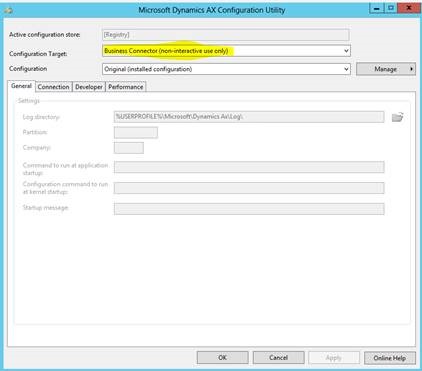
- Change the config target from Local Client to Non-Interactive
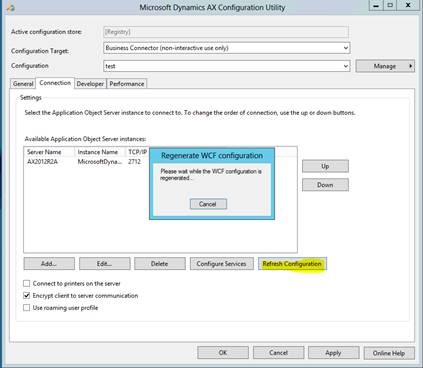
- Click the Refresh button to load the most recent configuration
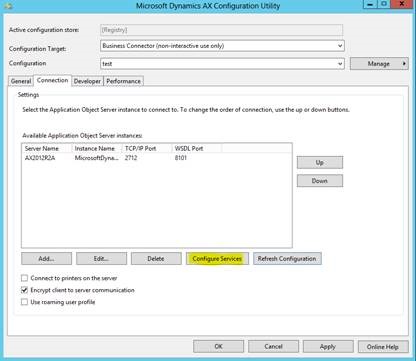
- Click the Configure Services button as you now need to add the endpoint behavior
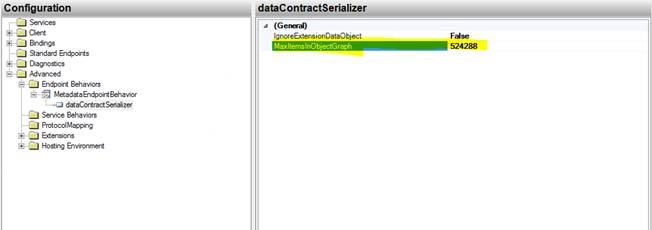
- In the configuration tool, to Advanced > Endpoint Behaviors
- Click the link for ‘New Endpoint Behavior Configuration
- Change the Name of the behavior to MetadataEndpointBehavior
- Click the Add button, select the dataContractSerializer extension and click Add Again
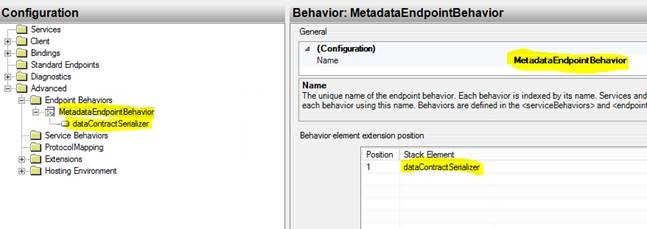
- Double click on the dataContractSerializer element that was added
- Change the MaxItemsInObjectGraph value from 65536 to match the value used in the Ax32Serv.exe (example 524288)
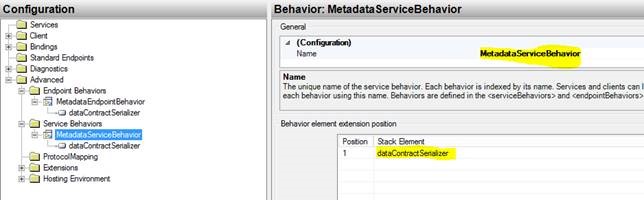
- In the configuration tool, to to Advanced > ServiceBehaviors
- Click the link for ‘New ServiceBehavior Configuration
- Change the Name of the behavior to MetadataServiceBehavior
- Click the Add button, select the dataContractSerializer extension and click Add Again
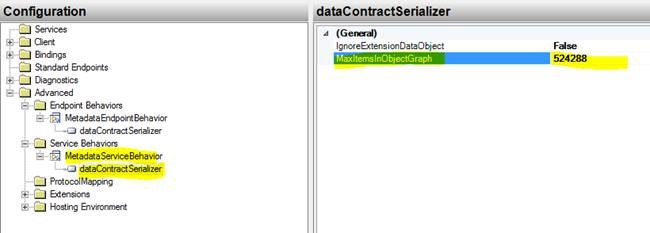
- Double click on the dataContractSerializer element that was added
- Change the MaxItemsInObjectGraph value from 65536 to match the value used in the Ax32Serv.exe (example 524288)
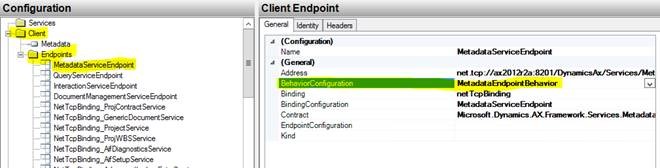
- Now go up to Client > Endpoints and select the MetadataServiceEndpoint.
- Set the BehaviorConfiguration property for the endpoint to your MetadataEndpointBehavior (it should show up in the drop down to be selected)
- File > Save to save your configuration changes, then close the WCF configuration editor
- Back in the AX client configuration utility click Apply to save the changes
- Restart the SSRS service
- Run the report and it should now work
Note
Manually changing the config on the SSRS server means if any services are reconfigured it will not automatically pick up those changes. Any changes made server side (through Ax32Serv.exe or through Inbound Ports form) will have to be updated in the config manually on this machine, or they can click Refresh to get the latest config and then recreate the endpoint behavior. Given Visual Studio doesn’t pick this up either, it seems typical that an application will not inherit endpoint behaviors from a service. Ideally you would just get your customizations to a point that the defaults do not need to be overridden.
Related to this Note and Part 2 please note that there is a possibility to configure a separate AXC file for SSRS BC use only.
Please see
https://technet.microsoft.com/EN-US/library/hh389774.aspx
Notice:
“Microsoft provides programming
examples for illustration only, without warranty expressed or implied,
including, but not limited to, the implied warranties of merchantability or
fitness for a particular purpose. This mail message assumes that you are
familiar with the programming language that is being demonstrated and the tools
that are used to create and debug procedures.”
This is not an officially tested solution by
Microsoft and should be fully tested before implementation.
Writer: Uwe Zimmermann <uwezim@microsoft.com>