In this blog series, we will walk through the steps to configure Microsoft Dynamics AX 2012 to integrate with UPS WorldShip using the Shipping carrier interface located in Inventory and warehouse management. This integration will enable Dynamics AX 2012 to send sales order shipment information automatically into UPS WorldShip for processing. Once processed, UPS will send the shipping transaction information back to Dynamics AX.Configure UPS WorldShip for importing transactions from AX 2012 database using the Import/Export (option)
This is Part 2 of this series where we will run through configuring the import mapping between the UPS WorldShip and Dynamics AX 2012 databases using Open Database Connectivity (ODBC)
- Toolbar > Import/Export Data (button) > Import/Export Wizard (option)
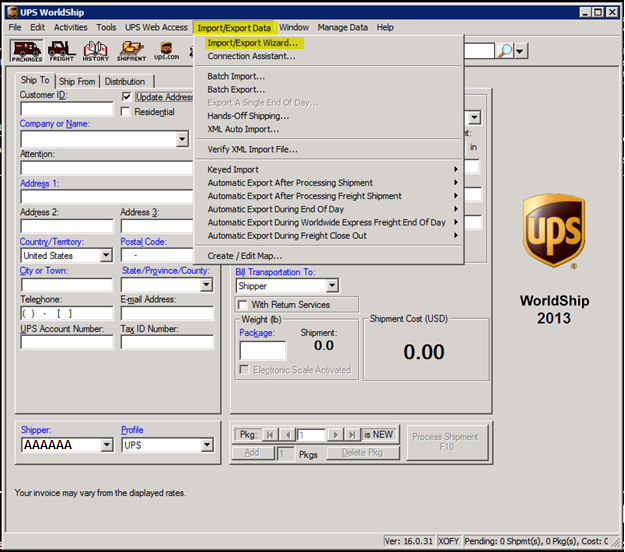
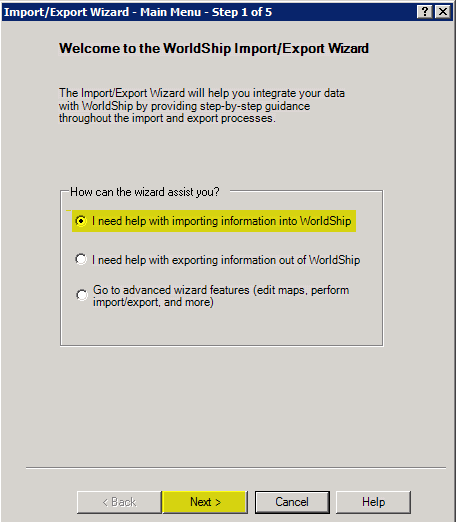
- In the Import/Export Wizard – Main Menu – Step 1 of 5 (form), select: I need help with importing information into WorldShip
- Click the Next (button)
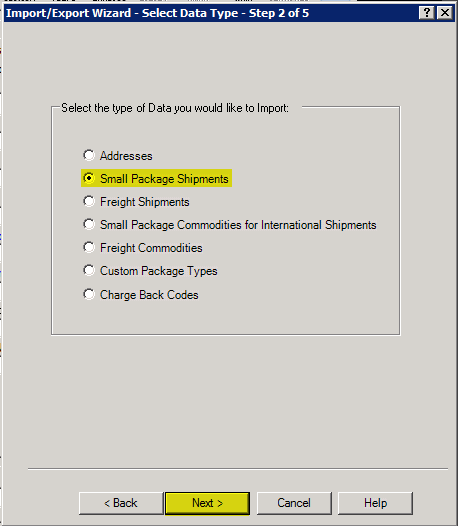
- In the Import/Export Wizard – Main Menu – Step 2 of 5 (form), select: Small Package Shipments
- Click the Next (button)
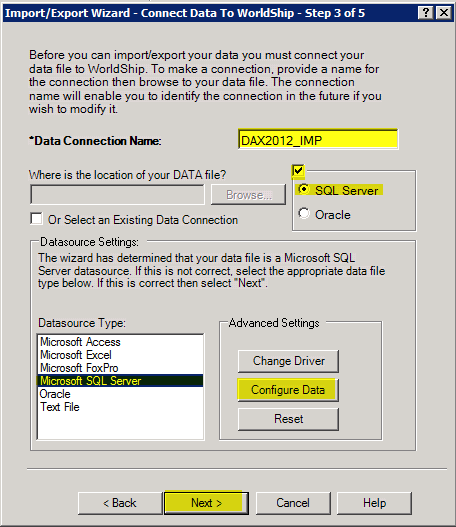
- In the Import/Export Wizard – Main Menu – Step 3 of 5 (form), set the following:
- Data connection Type: DAX2012_IMP
- Click on the checkbox above the Sql Server/Oracle options
- SQL Server: Selected
- Datasource Type: Microsoft SQL Server
- Click the Configure Data (button) to open the Supply advanced Setting (form)
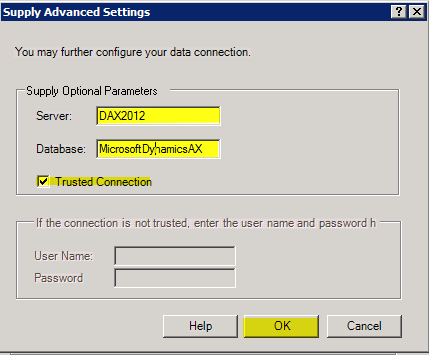
- In the Supply Advanced Settings (form), set the following
- Server: DAX2012 (Note: this is the name of your database server)
- Database: MicrosoftDynamicsAX (Note: this is the name of your AX database
- Trusted Connection: Marked
- Click the OK (button) to close the Supply Advance Settings (form)
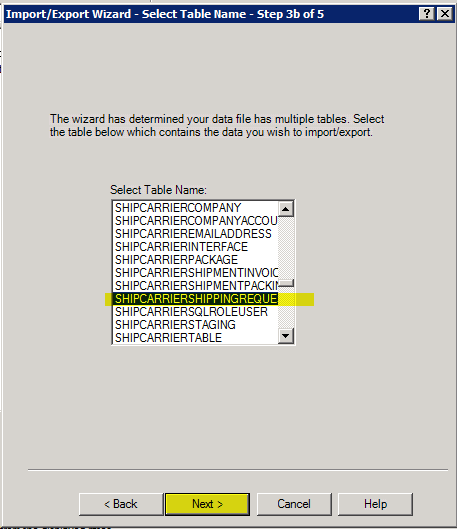
- Import/Export Wizard – Main Menu – Step 3b of 5 (form)
- Select Table Name: SHIPCARRIERSHIPPINGREQUEST
- Next (button)
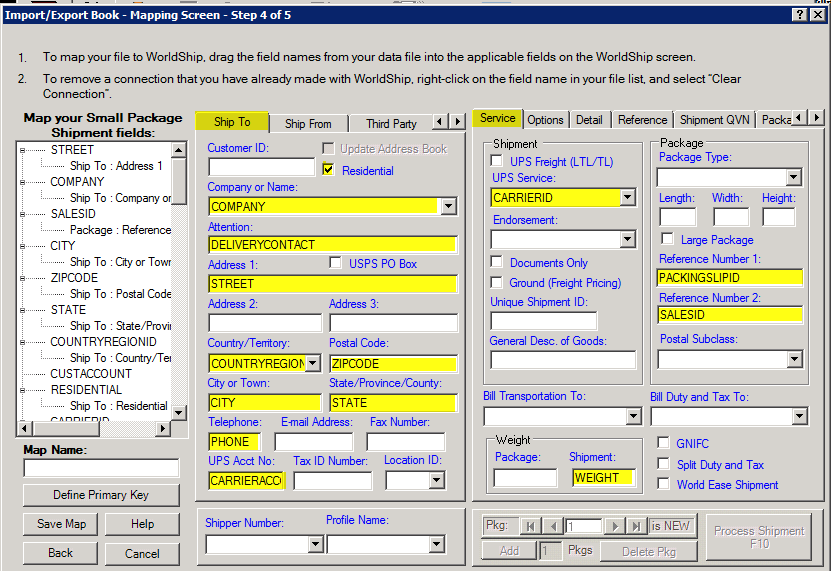
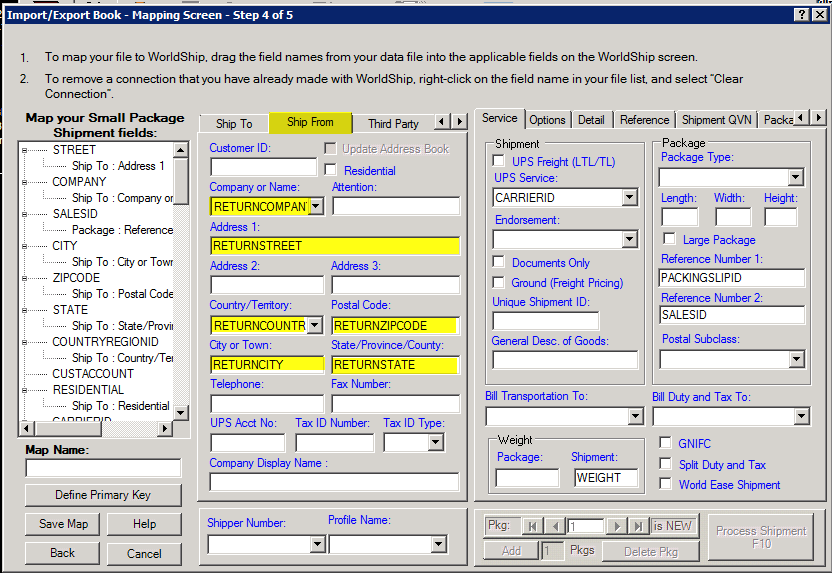
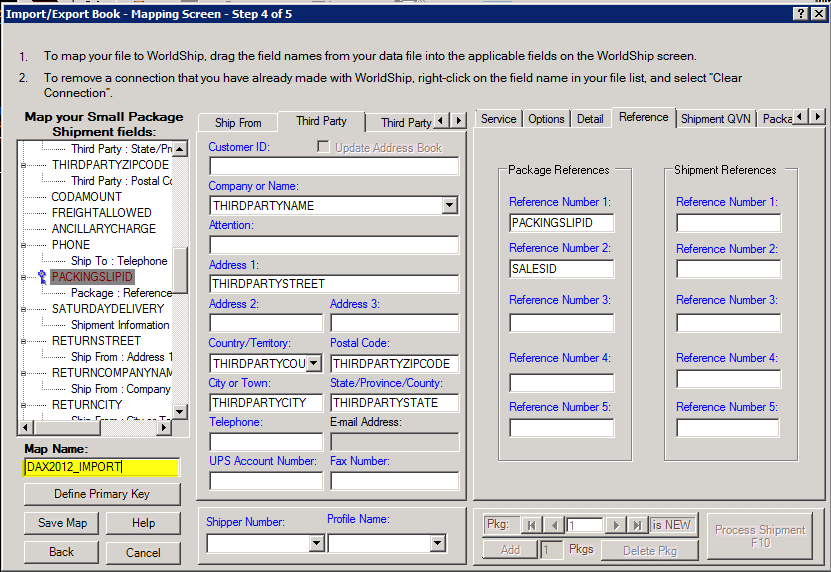
- Import/Export Wizard – Main Menu – Step 4 of 5 (form)
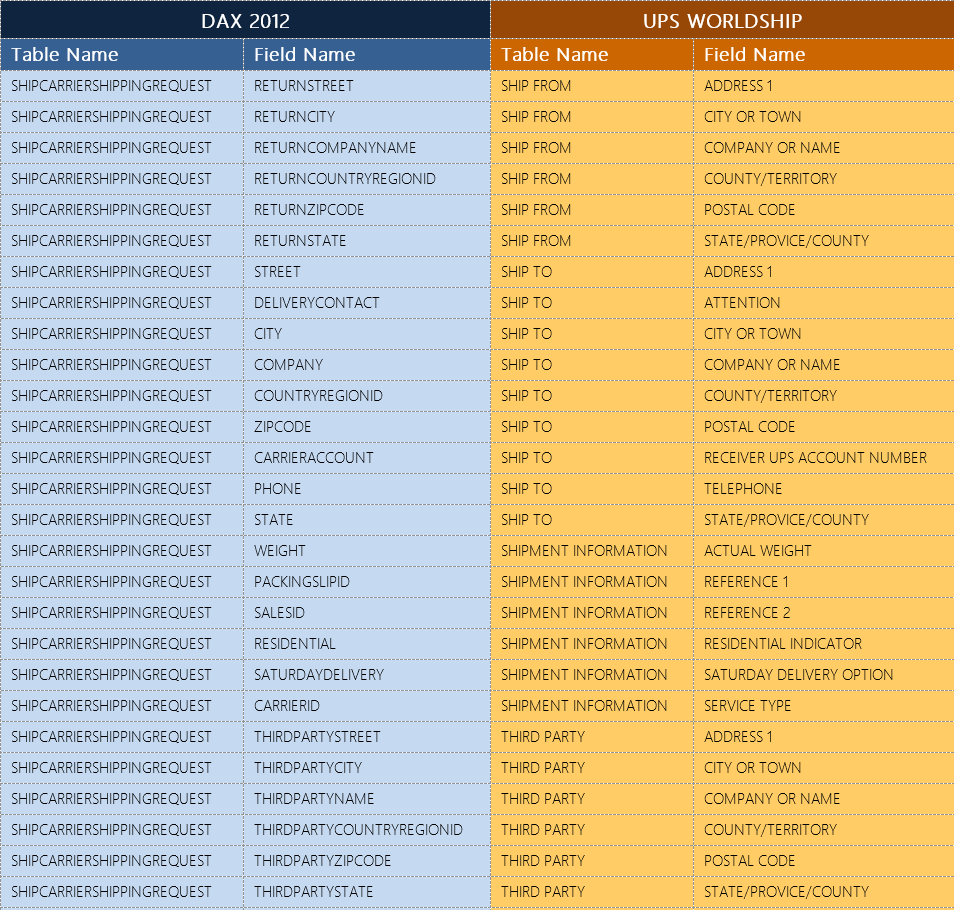
- Map the fields of the SHIPCARRIERSHIPPINGREQUEST (table) to the appropriate fields in the Ship To, Ship From, Third Party, Service, Options, and Reference tabs.
Note: Use the Import mapping table at the end of this blog for import mapping references between the WorldShip and Dynamics AX.
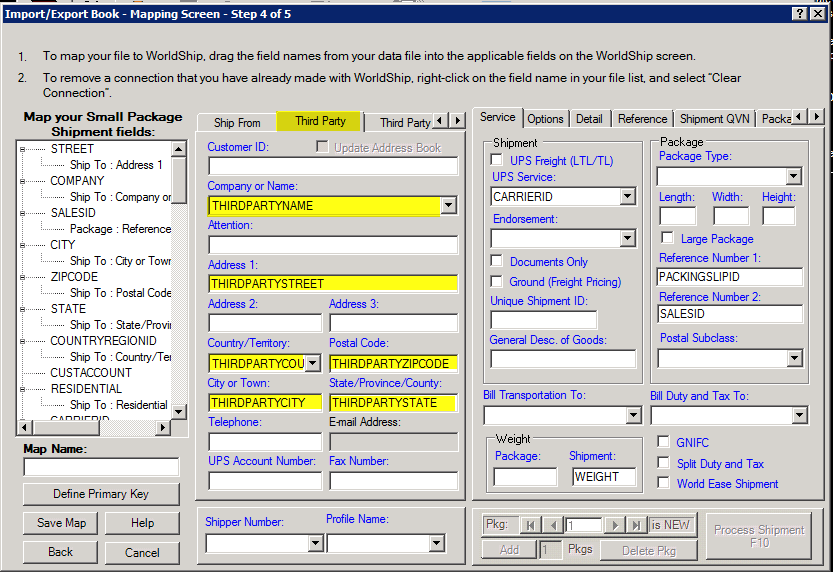
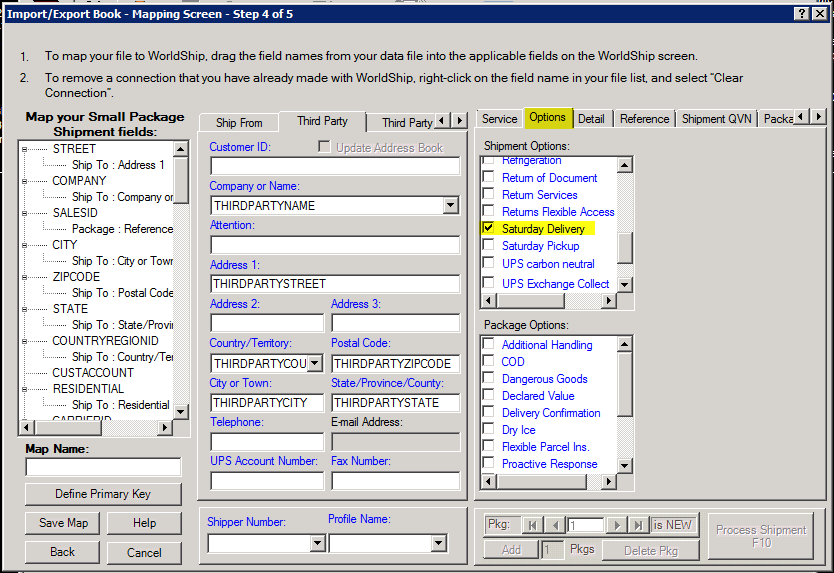
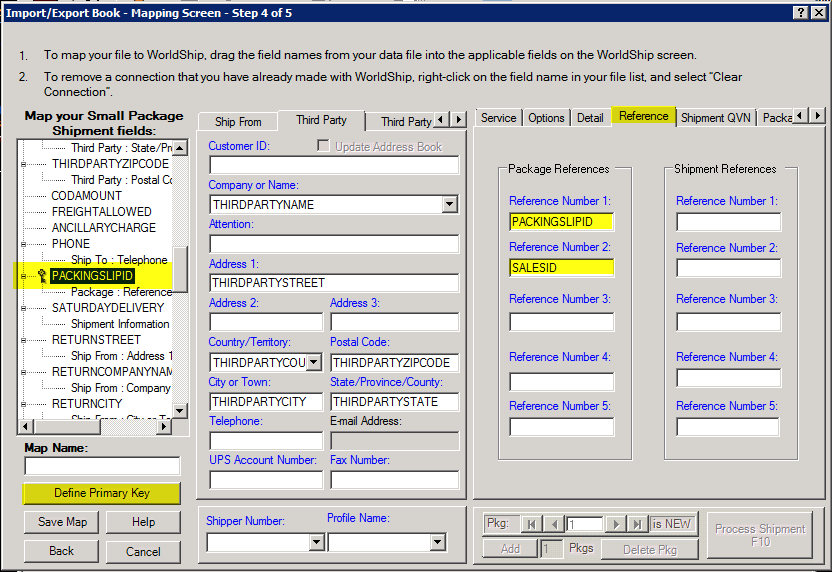
- In the “Map your Small Packages Shipment Fields” section, Select PACKINGSLIPID
- Click on the Define Primary Key (button)
Note: The PACKINGSLIPID will be the value that we use to pull the order information onto WorldShip using key in an import option that we will configure later in this blog series.
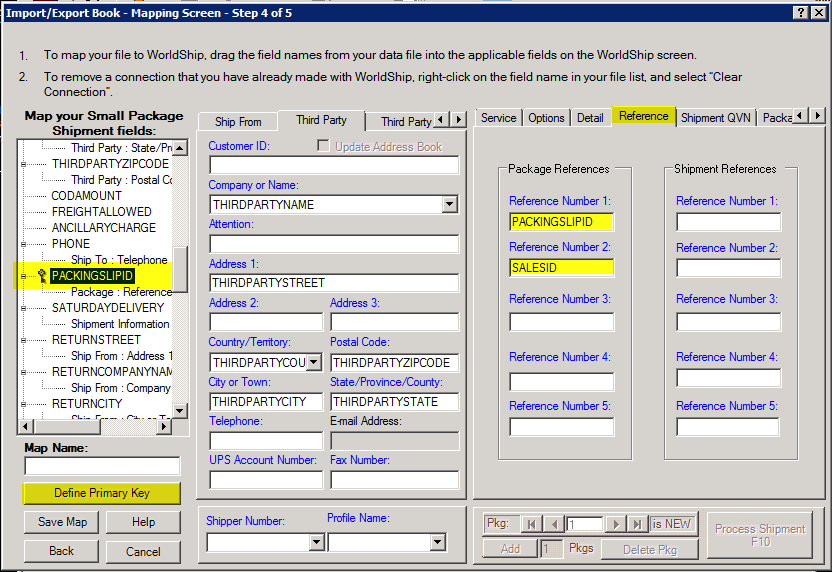
- In the Map Name (field), enter the name of the map: DAX2012_IMPORT
- Save Map (button)
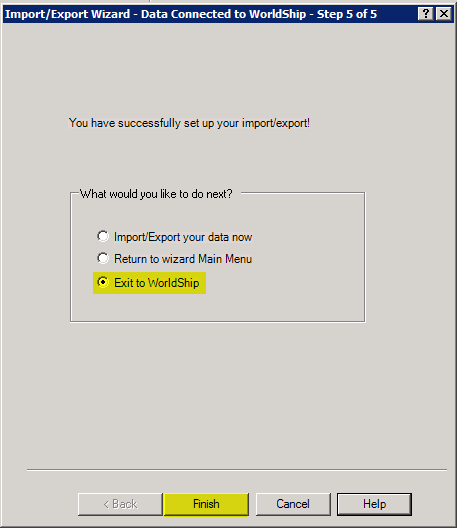
- Import/Export Wizard – Main Menu – Step 5 of 5 (form)
- Select Exit to WorldShip
- Finish (button) to close the Import/Export Wizard – Main Menu – Step 5 of 5 (form).
Import table and field mapping between UPS WorldShip and Dynamics AX 2012
If you missed the first installment of this series, you can reach it by following this link Part 1
John Bengson